
AECTIC Recorder
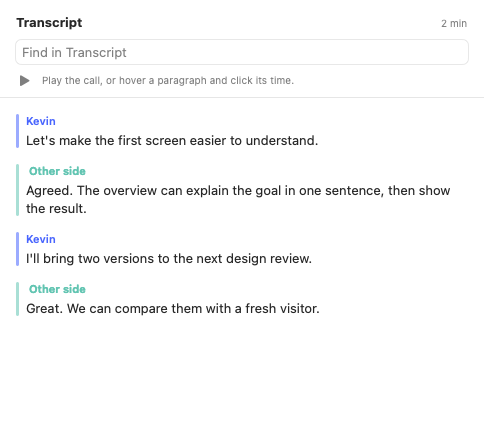
Record both sides of a call. Keep a transcript you can search.
I didn’t want to pay a subscription to record calls and get a transcript. I built the first version myself in ten minutes, for free.
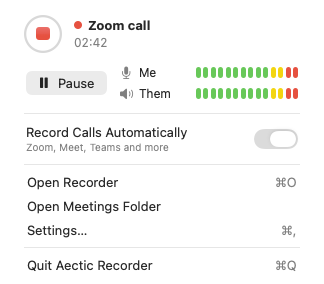
- Two audio tracks
- Record your microphone and the Mac’s system audio separately, even when you use headphones.
- Manual or automatic recording
- Start a recording yourself or enable detection for supported call apps. Pause stops both tracks until you resume.
- Local transcription
- Find a passage in the transcript or export the meeting as Markdown.
Why I built it
The first version only needed to do two things: record both sides of a call and give me a transcript I could search. That was enough to stay in the conversation and check afterwards what we decided or who took on a task.
Once I started using it regularly, I added the things I kept reaching for: a pause button in the menu bar, notes next to the transcript, and a Markdown export so I could keep the record with the rest of my work.
Screenshots
How I built it
- 1. Capture both sides
- I built the Mac interface in SwiftUI. Core Audio captures my microphone and the sound the Mac sends to my headphones or speakers as two streams. Keeping them separate gives the transcript a reliable starting point for distinguishing my voice from the other side.
- 2. Detect the start and end of a call
- For supported call apps, Recorder watches for the app to start using the microphone. It waits briefly when the microphone is released so a short interruption does not end the recording. If I stop it myself, it waits for that call to end before it can start again.
- 3. Turn audio into a timed transcript
- The app has an on-device path that uses voice activity detection to cut each track at pauses, then runs Whisper on the chunks. The chunks can be transcribed in different languages. Their timestamps let me bring both sides back together in the order they were spoken.
- 4. Keep the transcript useful on its own
- A separate AI step can draft a summary and pull out decisions and next steps. The transcript and my notes are still useful if that step is unavailable. I can search the transcript, check the wording, and export the meeting as Markdown.
What I learned
Speakerphone audio taught me why two tracks are only the beginning. The other side can leak back into the mic. I added an echo cleanup step before transcription and a watchdog that can recover a track if an audio device changes mid-call.
Pause releases both audio inputs. When I resume, the same recording continues and the gap keeps later timestamps aligned with the original call. Later, I can use the timestamps to find the right point in the call.